One of the first things you may want to do is test making an external API call. A good first test is using an external DB (JSON) to return data based on your caller ID which you can build on. Here are some basic steps to get this test working.
There are many different free ways to host an external web service that will integrate with your Webex Contact Center. This is a lab environment so normal production security precautions will not be covered.
I used render.com with a GitHub repository. Create a new Web Service.
In your repository create 3 files:
package.json
{
  "name": "webex-sandbox",
  "version": "1.0.0",
  "main": "server.js",
  "scripts": {
    "start": "node server.js"
  },
  "dependencies": {
    "cors": "^2.8.5",
    "json-server": "^0.17.4"
  }
}
server.js
const jsonServer = require('json-server');
const server = jsonServer.create();
const router = jsonServer.router('db.json');
const middlewares = jsonServer.defaults();

const port = process.env.PORT || 10000;

server.use(middlewares);
server.use(router);

server.listen(port, () => {
  console.log(`JSON Server is running on port ${port}`);
});
db.json
{
  "users": [
    {
      "firstName": "Tony",
      "lastName": "Stark",
      "userID": "tstark",
      "email": "tstark@marvel.com",
      "id": "1",
      "areaCode": "516",
      "e164": "15161111212",
      "zipCode": "11001",
      "actNum": "11111",
      "city": "Long Island",
      "state": "NY"
    },
    {
      "firstName": "Bruce",
      "lastName": "Banner",
      "userID": "bbanner",
      "email": "bbanner@marvel.com",
      "id": "2",
      "areaCode": "512",
      "e164": "15128540000",
      "zipCode": "78701",
      "actNum": "22222",
      "city": "Austin",
      "state": "TX"
    },
    {
      "firstName": "Steve",
      "lastName": "Rogers",
      "userID": "srogers",
      "email": "srogers@marvel.com",
      "id": "3",
      "areaCode": "718",
      "e164": "17183331212",
      "zipCode": "11201",
      "actNum": "33333",
      "city": "Brooklyn",
      "state": "NY"
    },
    {
      "firstName": "Stephen",
      "lastName": "Strange",
      "userID": "sstrange",
      "email": "sstrange@marvel.com",
      "id": "4",
      "areaCode": "212",
      "e164": "12124441212",
      "zipCode": "10012",
      "actNum": "44444",
      "city": "New York",
      "state": "NY"
    },
    {
      "firstName": "Peter",
      "lastName": "Parker",
      "userID": "pparker",
      "email": "pparker@marvel.com",
      "id": "5",
      "areaCode": "718",
      "e164": "17185551212",
      "zipCode": "11375",
      "actNum": "55555",
      "city": "Queens",
      "state": "NY"
    }
  ]
}
Flow:
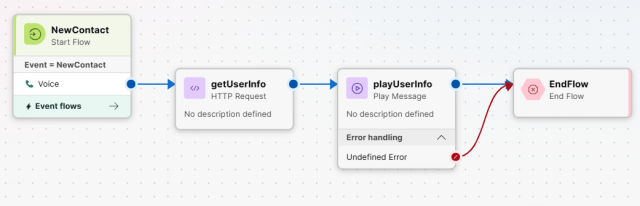
In Webex Contact Center, you cannot directly reference event output variables (HTTP variables included) inside a media or play node because audio and prompt fields require a persistent flow variable or global variable to resolve scope during playback.
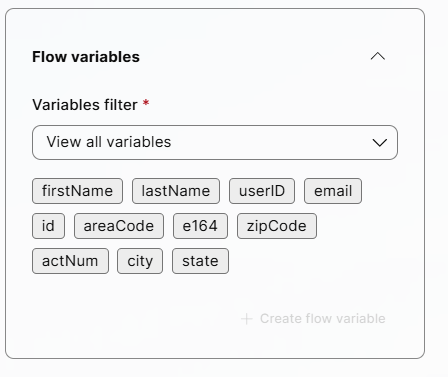
Open the variable manager in your flow and define a new custom flow variable for each value the web service will return. I stuck with the same names.
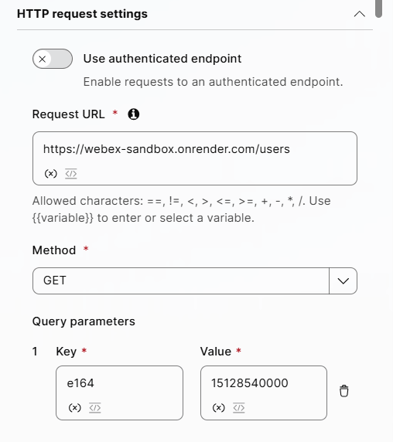
In this basic test we are going to use HTTP Request activity to make the API call to the web service we created. First. We will manually define the caller ID we send and the variable name defined in db.JSON. Since it’s a lab, toggle authentication to off. Paste your webservice URL in the Request URL. Note / users, users is the key in the DB. 5128540000 matches the e164 value for Bruce Banner
In the parse settings you transfer the HTTP variable to a flow variable.
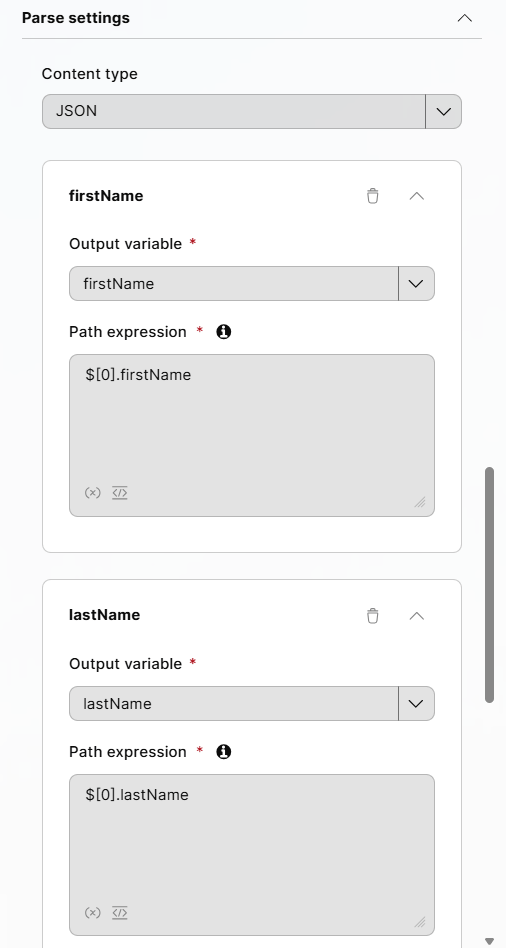
Explanation of the [0]: This ends up sending the URL: https://webex-sandbox.onrender.com/users?e164=15128540000
Even though your query ?e164=15128540000 only matches one person (Bruce Banner), the API still returns the result inside an array [ … ]. An array in JSON is like a physical folder, and the individual records inside it as sheets of paper. The API doesn’t send back just the single sheet of paper (Bruce Banner’s record). It hands you a folder titled “users” with 1 sheet of paper inside it.
Webex Contact Center doesn’t know how many sheets are in the folder until it opens it. To grab the data from that single sheet, you still have to tell Webex: “Open the folder (users), and pull the data from the first sheet inside ([0])”. This works because 15128540000 is a unique e164 in the DB. If it was not you would need to update your design.
UPDATE
Going from a staic ANI to a dynamic ANI I ran into issues getting the ANI to be recognized.
Web App logs show the URL I was sending was:
GET /users?e164=%2B15128540000 200 2.608 ms – 2
This was due to the fact inbound calls to a Webex flow are formatted as e164 (+1 XXX XXX XXXX) but my db.JSON has numbers listed as 11 digits.
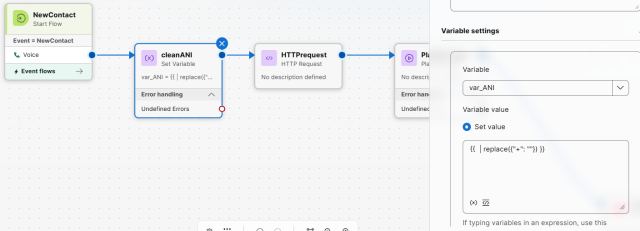
One way to solve for this is with a set variable activity and transfer NewContact.ANI prior to the http request. Convert the event activity variable to a flow variable and strip the +
“{{ | replace({“+”: “”}) }}”
Then update the http get to “{{var_ANI}}”